


I requested my own archive last month just to see what Instagram actually keeps on file, and the answer is: a lot more than I expected. Learning how to download Instagram data isn't complicated, but the request itself sits in a menu most people never open, and the file you get back is dense enough that it's worth knowing what to look for before you dive in.
This article walks through how to download data from Instagram step by step, the difference between the two file formats you can choose, and where a private story viewer comes in if it's someone else's content you're actually trying to see, not your own.

Why Download Your Instagram Data at All
A few reasons come up more than others for why people look into how to download data from Instagram in the first place:
- Backing up memories. Old captions, comments, and messages disappear the moment an account gets deleted, deactivated, or banned. An export is the only real safety net.
- Switching platforms. If you're moving your content somewhere else, having a full download makes migration far less painful.
- Curiosity about ad data. Instagram tracks more about your activity than most people assume, and the export includes categories most users never see on the app itself.
- Personal records. Some people just want a copy of their own history — years of posts and stories in one place, outside of an app that could change at any time.
How to Download Instagram Data From Your Own Account
Here's how to download Instagram data directly from Instagram, step by step:
- Open Instagram and go to your profile.
- Tap the three lines in the top right, then go to Settings and Privacy.
- Select Accounts Center, then Your information and permissions.
- Tap Download your information.
- Choose the account you want the data for and select Create export.
- Pick a date range — all time, or a custom window.
- Choose your format (more on this below) and media quality.
- Submit the request and wait for Instagram to notify you by email.
Eight steps, none of them technical, and this is essentially how to download data from Instagram no matter which account you're doing it from. The friction of learning to download Instagram data is entirely in locating the menu — Instagram tucks it inside Accounts Center rather than anywhere obvious in the main settings.
How to Download Data From Instagram on Mobile vs. Desktop

How to download data from Instagram doesn't really change depending on the device — the menu structure is nearly identical on the app and in a browser. A few practical differences worth knowing:
- Mobile app. Faster to navigate if you're already logged in, but exports of several years of activity can take a while to prepare, and you'll get a push notification once it's ready.
- Desktop browser. The same Accounts Center flow works at instagram.com, and it's easier to review the download options on a larger screen if you're picking a specific date range rather than requesting everything.
- Notification timing. Whichever device you request from, the email or notification arrives on whatever device is logged into that account — not necessarily the one you used to submit the request.
If you've tried how to download data from Instagram before and the request seemed to vanish, check your notification settings first — it's usually sitting in your inbox, just easy to miss. Either way, the process for how to download Instagram data stays identical once you've found the right menu.
How to Download IG Data in the Right Format
Instagram gives you a choice between two formats, and picking the wrong one is the most common regret people have after learning how to download Instagram data for the first time.
- JSON. This is the format built for tools and developers. If you're planning to import your data somewhere else or run it through a script, this is how to download IG data in a form that's actually usable programmatically. It's not readable as-is in a normal browser.
- HTML. This format opens like a simple website — clickable, browsable, and readable without any extra software. Most people who just want to look through their own history should pick this one.
Whichever you pick, media quality is a separate setting. Choosing high quality on years of photos and videos means a considerably larger file and a longer wait, so it's worth thinking about what you'll actually use before selecting it.
How Long Does It Take
Once you submit the request, Instagram typically takes anywhere from a few minutes to 48 hours to prepare the file, depending on how much data is involved and how specific your date range was — the same timing applies whether you're figuring out how to download IG data in JSON or HTML. You'll get a notification with a download link once it's ready, and that link usually expires after a few days, so don't sit on it too long.
How to Download Information From Instagram About Someone Else's Profile
Here's the part that trips a lot of people up: how to download information from Instagram this way only works for your own account. Instagram's export tool has no option to pull another user's data, and there's no legitimate version of this feature that lets you request someone else's archive — that's by design, not a bug.
If what you actually want is to see or save content from a public or private profile that isn't yours, that's a different problem entirely, and it needs a different tool.
Peekviewer: Saving Content From a Profile That Isn't Your Own
This is where Peekviewer comes in. Rather than an official export limited to your own account — which only ever answers how to download Instagram data for yourself — it lets you open and save content from any public or private profile directly, with no Instagram login and no connection to your own account at any stage. Everything happens in the browser — no install, and the profile owner never sees a trace of the visit.
Getting started:
- Open the Peekviewer site in any browser.
- Type in the username you want to check.
- Confirm it's the right profile before anything is charged.
- Create an account and select a plan.
- Open the dashboard — content is already loaded and ready to save.
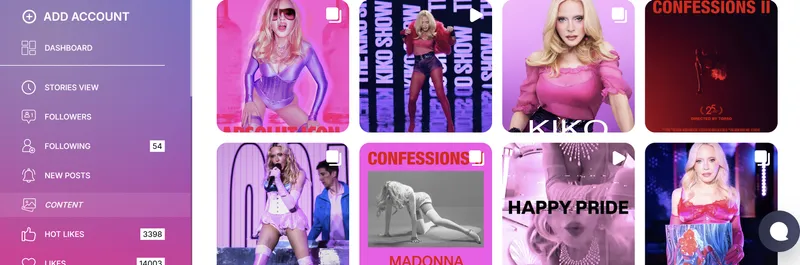
Inside the dashboard:
- Public and private profiles both work — Instagram's own export never extends past your own account, but this does.
- Media downloads — original-quality photos and videos, watermark-free.
- Anonymous stories — nothing shows up in the viewer list and no notification fires.
- Complete follower data — the kind of detail an Instagram followers viewer is designed to surface, beyond a simple count.
- Comment history — read full threads the way a standalone Instagram comments viewer would, without your own account touching Instagram.
- Like activity — see what's been liked using the same approach an Instagram likes viewer is purpose-built for.
- A three-month rolling archive — content stays accessible even once it's deleted from the profile itself.
Conclusion
How to download Instagram data comes down to one straightforward request — Accounts Center, Download your information, pick a format, and wait for the email. It's the only way to get your own posts, messages, and activity history in one file, and it takes a few minutes to set up.
But if the content you're looking for belongs to someone else, an export request won't work. For that, you need an Instagram story viewer private account online tool like Peekviewer, which lets you view and save profile content without needing account access.
FAQ
Go to Settings and Privacy, then Accounts Center, then Your information and permissions, then Download your information. Pick a date range and format, and Instagram emails you a link once the file is ready.
The export tool lets you select specific categories during the request, so you can narrow it down to just messages instead of your entire history, which also makes the file ready faster.
Shorter date ranges and lower media quality both speed things up considerably. A full multi-year archive in high quality is what usually pushes the wait toward 48 hours.
You need to reactivate the account first. A deactivated account can still request its own export, but a permanently deleted one cannot — once it's gone, so is the ability to request the archive.
No. Instagram's export feature only works for the account that's logged in and requesting it. For content on a profile you don't own, viewing it through a tool like Peekviewer is the practical alternative.